Photo Stitcher
An Apple Shortcut that stitches photos vertically, horizontally, or in a grid with custom spacing
Features
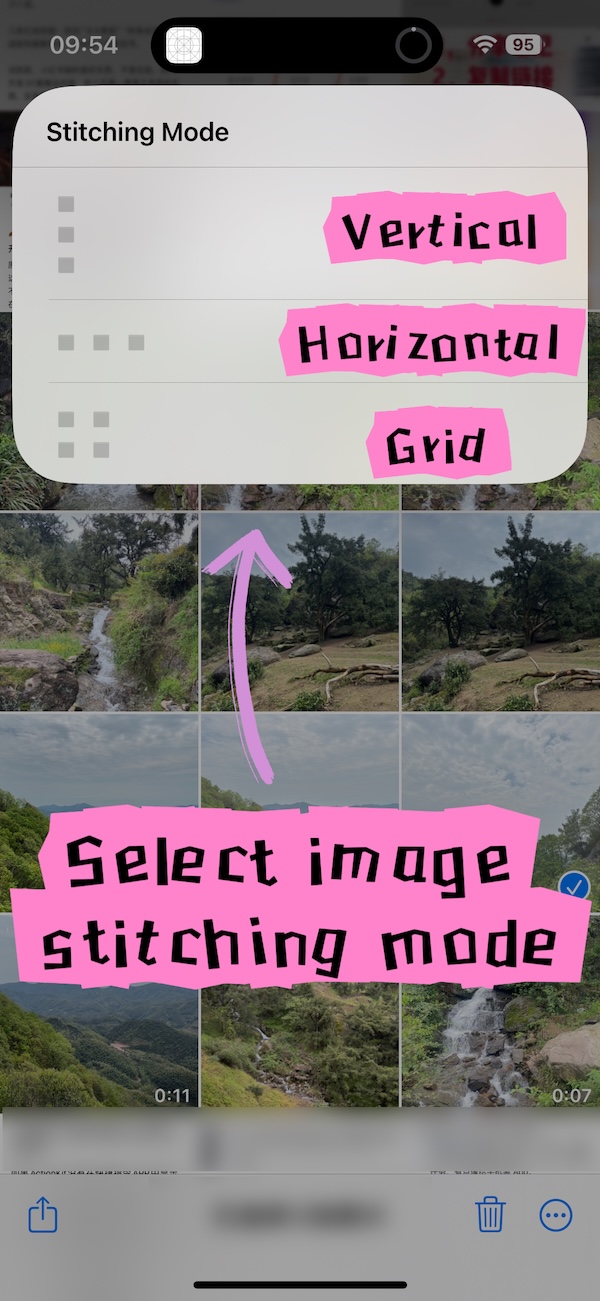
- ✓Vertical stitching – stack photos top to bottom
- ✓Horizontal stitching – arrange photos side by side
- ✓Grid stitching – custom rows and columns
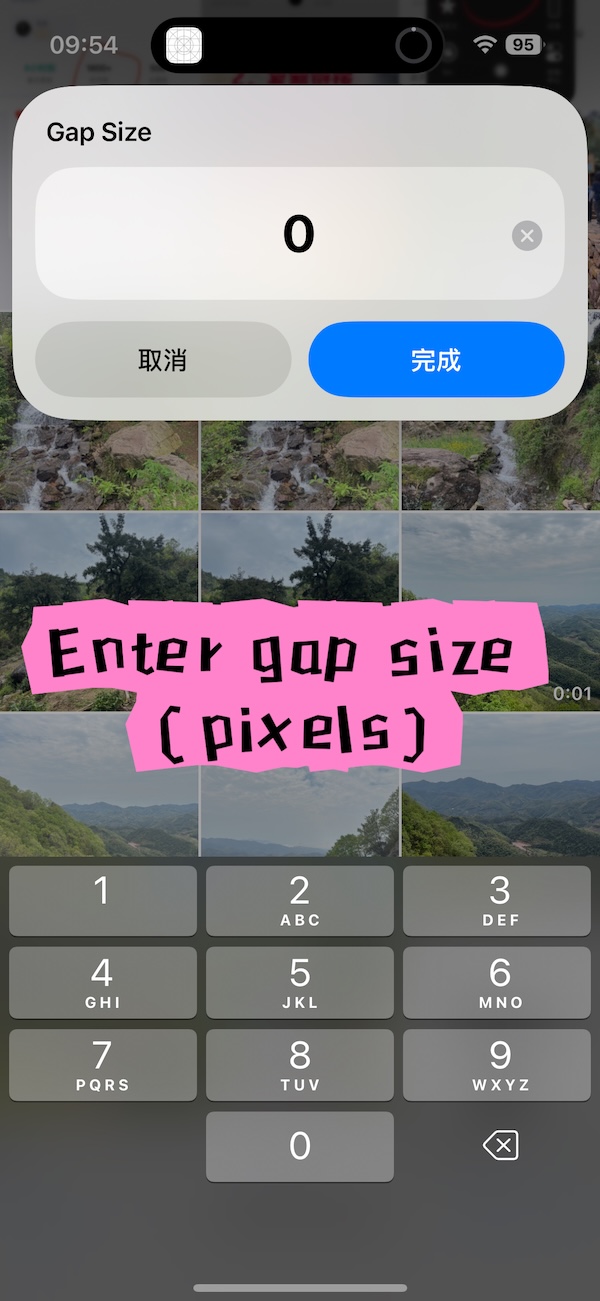
- ✓Adjustable gap between images (pixels)
- ✓Batch select multiple photos
- ✓High‑quality output, preserves original resolution
A powerful Apple Shortcut that quickly stitches multiple photos into a single image. Supports vertical, horizontal, and grid layouts with custom spacing. Perfect for long screenshots, collages, and social media formatting.
Features
- Vertical stitching – Arranges selected photos from top to bottom
- Horizontal stitching – Arranges selected photos from left to right
- Grid stitching – Arranges photos in a grid
- Custom gap – Set the spacing between images (in pixels)
- Batch processing – Select multiple photos at once
How to Use
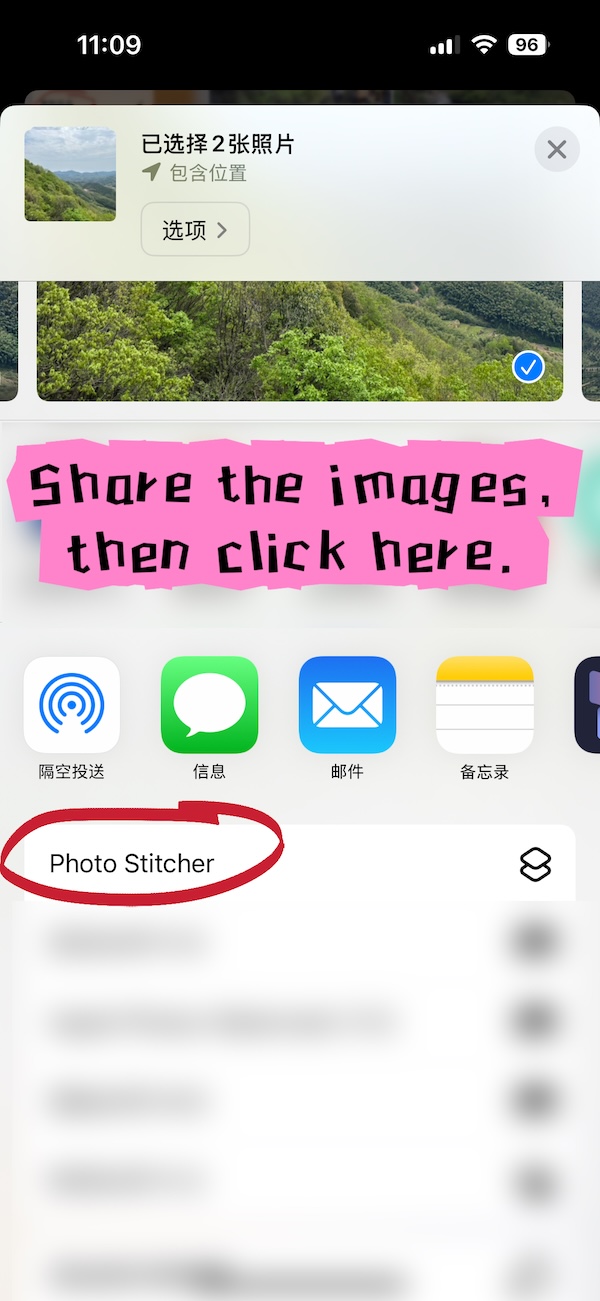
From the Photos app
- Select multiple photos in your library (order determines stitching order)
- Tap the Share button
- Scroll down and tap "Photo Stitcher"
- Choose the stitching mode (Vertical / Horizontal / Grid)
- Enter the desired gap between images (optional, default is 0)
- Wait for processing – the stitched image will be saved automatically
From the Shortcuts app
- Run the "Photo Stitcher" shortcut
- Select one or more photos from your library
- Choose the stitching mode
- Enter the gap (optional)
- Wait for processing – the result is saved automatically
Use Cases
- Long screenshot stitching (chat logs, web pages)
- Multi‑photo layouts for social media
- Creating photo collages
- Product image composites
- Creative grid posters
FAQ
What is the maximum number of photos I can stitch?
There is no hard limit, but stitching a large number of high-resolution photos will take longer. For best performance, keep it under 20 photos at a time.
How is the order of photos determined?
The shortcut stitches photos in the order you select them. In the Photos app, the first photo you tap will appear at the top (vertical) or left (horizontal).
Does stitching reduce image quality?
No. The shortcut preserves the original resolution of each photo. The output dimensions will be the sum of individual photo dimensions in the stitching direction.
Can I stitch photos of different sizes together?
Yes, but results look best when all photos have the same width (for vertical stitching) or same height (for horizontal stitching).
Requirements
- iOS 16 or later
- iPadOS 16 or later
- Shortcuts app installed
Support & Feedback
For questions or suggestions, email to public-media@rushtech-lab.cn