Text Watermark
An Apple Shortcut that adds custom text watermarks to photos and Live Photos — requires ActionKit Pro
Features
- ✓Add custom text watermark to photos
- ✓Works with both static images and Live Photos
- ✓Auto-detects photo type — no manual switching
- ✓Preserves Live Photo motion and sound
- ✓Batch process multiple photos at once
A practical Apple Shortcut that overlays custom text onto your photos and Live Photos. It automatically detects whether each image is a static photo or a Live Photo, and handles both seamlessly — Live Photos keep their motion and audio intact. Perfect for branding, copyright protection, and social media sharing. This shortcut requires ActionKit Pro (paid) to work — it uses the "Add text to short videos" and "Video to Live Photo" actions from ActionKit's premium feature set.
Before & After
Before
After
How It Works
For static photos, the shortcut overlays text directly onto the image. For Live Photos, it extracts the video portion, uses ActionKit Pro's "Add text to short videos" action to overlay the watermark onto every frame, then uses "Video to Live Photo" to repackage the result back into a Live Photo. The shortcut automatically detects the type of each selected photo, so you don't need to do anything differently.
Features
- Custom text watermark — Set any text (e.g., your name, brand, or copyright notice)
- Auto-detection — Works with both static images and Live Photos, no manual switching needed
- Flexible positioning — Place the watermark at the top, bottom, center, or corners
- Adjustable style — Control font size and color to suit your image
- Preserves Live Photo — Motion and sound remain fully intact after watermarking
- Batch mode — Process multiple photos in one go
How to Use
From the Photos app
- Select one or more photos in your library (static or Live Photo — both work)
- Tap the Share button
- Scroll down and tap "Live Photo Watermark"
- The shortcut processes your photos and saves the watermarked versions back to your library automatically
From the Shortcuts app
- Run the "Live Photo Watermark" shortcut
- Select photos from your library (can select multiple)
- The shortcut processes and saves automatically
Configuration
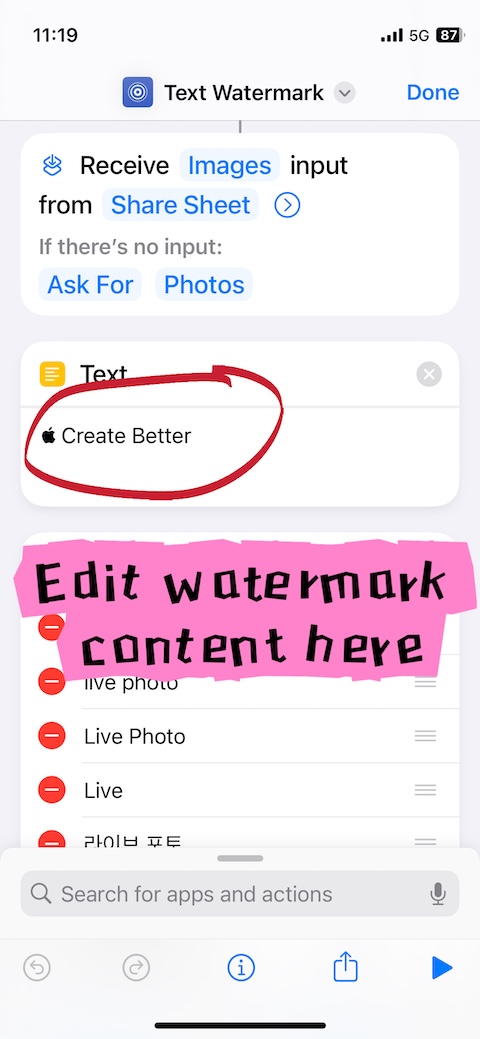
The watermark text, position, and style are configured by editing the shortcut itself. You only need to set this up once:
- Open the Shortcuts app
- Find "Text Watermark" in your shortcut list
- Tap the ··· (three dots) icon on the shortcut to open the editor
- At the top of the shortcut, locate the Text action — this is your watermark content. Replace it with your desired text (e.g., "© Your Name")
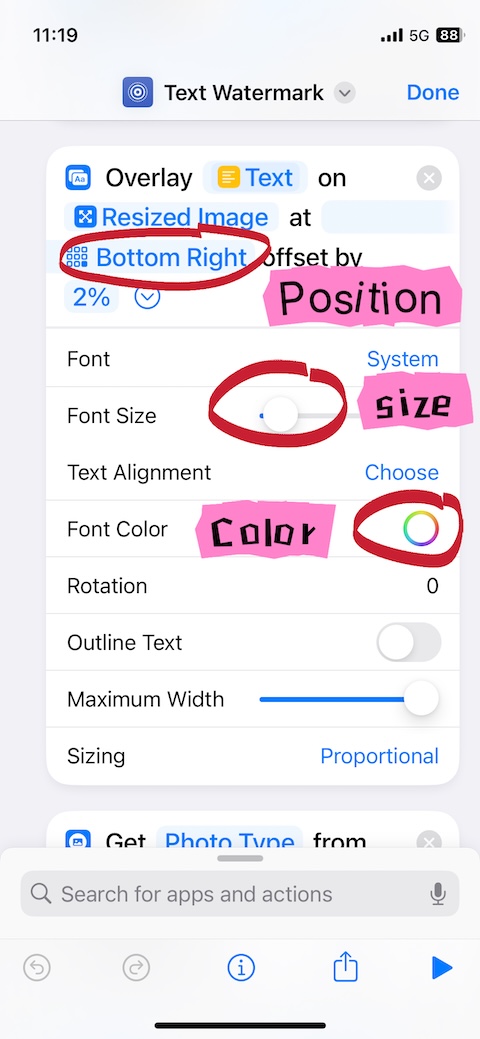
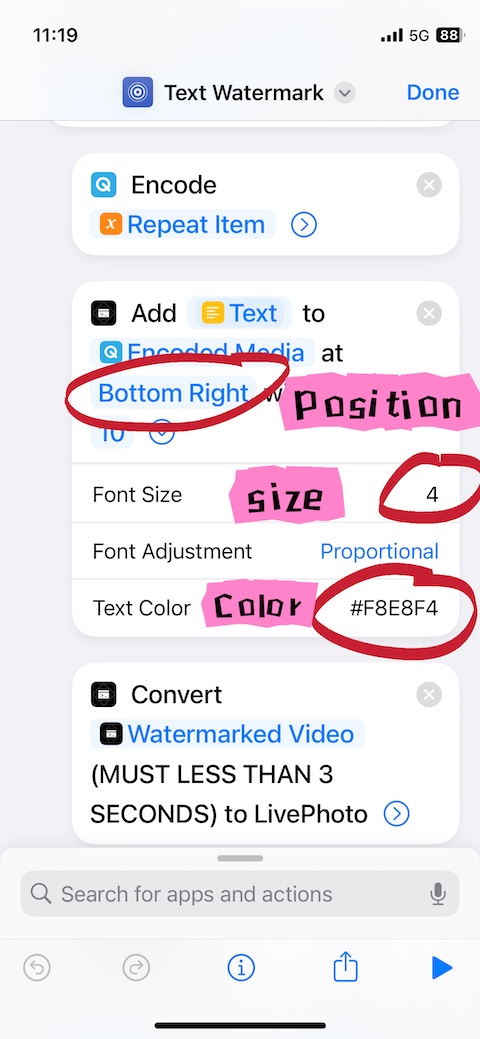
- In the "Overlay Text" / "Add Text To A Short Video" action, adjust:
- Position: top-left, top-right, bottom-left, bottom-right, or center
- Font Size: larger or smaller to match your images
- Color: choose a color that stands out against your typical photos
- Tap Done to save your configuration
Now whenever you run the shortcut, it will use your saved settings — no need to enter anything each time.

Use Cases
- Adding copyright watermarks to your photography work
- Branding photos before sharing on social media
- Tagging event photos with dates or event names
- Protecting original content from unauthorized use
- Adding credits or attribution to shared memories
FAQ
I downloaded this shortcut but when I run it, it says "Cannot run the shortcut because the action cannot be found"?
This shortcut depends on premium features provided by ActionKit Pro. Please download ActionKit from the App Store and subscribe to Pro first, then the shortcut will work normally.
Does this shortcut work with regular photos or only Live Photos?
It works with both. The shortcut automatically detects each photo's type — static photos get the watermark applied directly, while Live Photos keep their motion and sound intact.
Why does this shortcut require ActionKit Pro?
It relies on two premium actions from ActionKit: "Add text to short videos" (to overlay the watermark on every frame) and "Video to Live Photo" (to repackage the result). These are not available in the free tier.
Can I change the watermark after the shortcut runs?
The watermark is permanently baked into the image/video. If you need a different watermark later, re-run the shortcut on the original photo with updated settings.
Will the watermark appear on the still key photo or only during playback?
Both. For Live Photos, the text is applied to every frame including the key photo (the still frame you see in the Photos app).
Requirements
- iOS 17 or later / iPadOS 17 or later
- Shortcuts app installed
- ActionKit app with Pro subscription (required for "Add text to short videos" and "Video to Live Photo" actions)
Support & Feedback
For questions or suggestions, email to public-media@rushtech-lab.cn