Time Watermark
An Apple Shortcut that stamps the capture date and time onto your photos and Live Photos — requires ActionKit Pro
Features
- ✓Add capture timestamp watermark to photos
- ✓Works with both static images and Live Photos
- ✓Auto-detects photo type — no manual switching
- ✓Configurable position, color, and date format
- ✓Preserves Live Photo motion and sound
- ✓Batch process multiple photos at once
A practical Apple Shortcut that stamps the original capture date and time onto your photos and Live Photos. It reads the EXIF data from each image and overlays a customizable timestamp — perfect for documenting events, travel logs, or adding a retro film-camera feel to your photos. The shortcut automatically detects whether each image is a static photo or a Live Photo and handles both seamlessly. This shortcut requires ActionKit Pro (paid) to work — it uses the "Add text to short videos" and "Video to Live Photo" actions from ActionKit's premium feature set.
Before & After
Before
After
How It Works
For static photos, the shortcut reads the photo's capture time from its metadata and overlays the formatted timestamp directly onto the image. For Live Photos, it extracts the video portion, uses ActionKit Pro's "Add text to short videos" action to stamp the timestamp onto every frame, then uses "Video to Live Photo" to repackage the result. The entire process is automatic — no need to manually distinguish between photo types.
Features
- Timestamp watermark — Displays the original capture date and time of each photo
- Auto-detection — Works with both static images and Live Photos, no manual switching needed
- Flexible positioning — Place the timestamp at the top, bottom, center, or corners
- Customizable format — Choose from multiple date/time formats (e.g., 2024-01-15, Jan 15 2024, 15/01/2024)
- Adjustable style — Control font size and color to match your photos
- Preserves Live Photo — Motion and sound remain fully intact after stamping
- Batch mode — Process multiple photos in one go
How to Use
From the Photos app
- Select one or more photos in your library (static or Live Photo — both work)
- Tap the Share button
- Scroll down and tap "Time Watermark"
- The shortcut reads each photo's capture time, stamps the timestamp, and saves the watermarked versions back to your library automatically
From the Shortcuts app
- Run the "Time Watermark" shortcut
- Select photos from your library (can select multiple)
- The shortcut processes and saves automatically
Configuration
The timestamp format, position, and style are configured by editing the shortcut itself. You only need to set this up once:
- Open the Shortcuts app
- Find "Time Watermark" in your shortcut list
- Tap the ··· (three dots) icon on the shortcut to open the editor
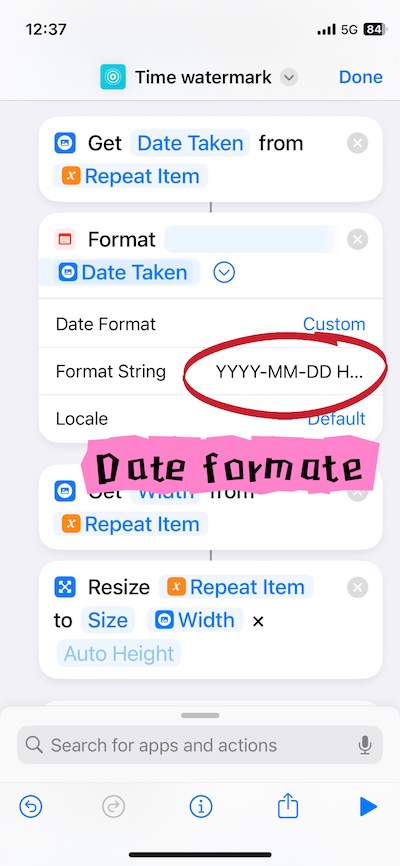
- At the top of the shortcut, locate the "Format Date" action — this controls how the timestamp appears. Choose a preset format or create a custom one:
- Short: 1/15/24, 2:30 PM
- Medium: Jan 15, 2024 at 2:30:00 PM
- Long: January 15, 2024 at 2:30:00 PM GMT+8
- Custom: YYYY-MM-DD HH:mm (e.g., 2024-01-15 14:30)
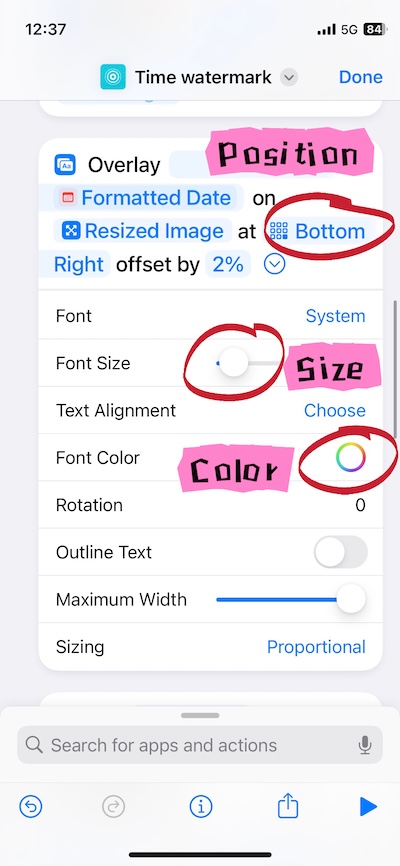
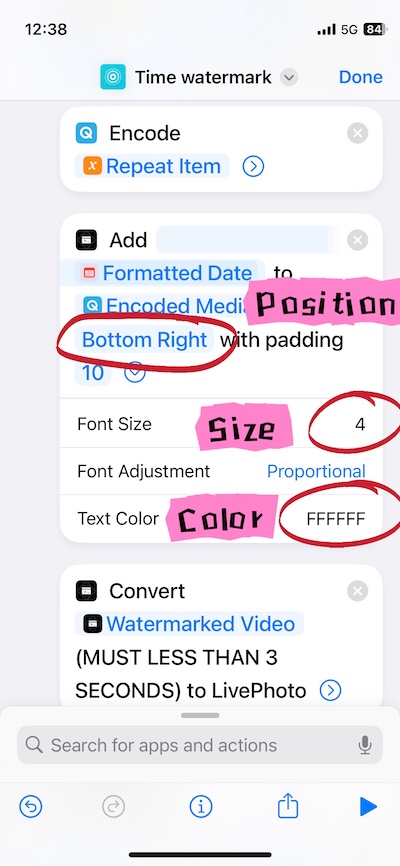
- In the "Overlay Text" / "Add Text To A Short Video" action, adjust:
- Position: top-left, top-right, bottom-left, bottom-right, or center
- Font Size: larger or smaller to match your image dimensions
- Color: choose a color that stands out against your typical photos
- Tap Done to save your configuration
Now whenever you run the shortcut, it will use your saved settings — no need to configure anything each time.

FAQ
I downloaded this shortcut but when I run it, it says "Cannot run the shortcut because the action cannot be found"?
This shortcut depends on premium features provided by ActionKit Pro. Please download ActionKit from the App Store and subscribe to Pro first, then the shortcut will work normally.
Does this shortcut use the photo's actual capture date or the current date?
It reads the date from the photo's metadata. If the photo still has its original EXIF parameters intact (e.g., taken with the device and never re-processed), this date reflects the actual shooting time. However, if the photo was downloaded from the internet, transferred via messaging apps, or processed by other apps, the metadata date will likely be the save/creation date rather than the original capture time.
What happens if a photo has no readable date?
If the date cannot be read from the photo's metadata (e.g., for screenshots or heavily stripped images), the shortcut will use the file's creation date as a fallback. If neither is available, it skips that photo.
Can I use a custom date format like YYYY年MM月DD日?
Yes. The "Format Date" action in the shortcut editor supports custom format strings. You can use patterns like yyyy-MM-dd, MM/dd/yyyy HH:mm, or yyyy年MM月dd日 HH:mm.
Why does this shortcut require ActionKit Pro?
It relies on two premium actions from ActionKit: "Add text to short videos" (to stamp the timestamp on every frame) and "Video to Live Photo" (to repackage the result). These are not available in the free tier.
Will the timestamp appear on the still key photo or only during playback?
Both. For Live Photos, the timestamp is applied to every frame including the key photo.
Use Cases
- Adding date stamps to travel photos for a visual timeline
- Documenting event photos with precise timestamps
- Creating a retro film-camera aesthetic
- Organizing family photos chronologically
- Legal or insurance documentation requiring timestamped evidence
Requirements
- iOS 17 or later / iPadOS 17 or later
- Shortcuts app installed
- ActionKit app with Pro subscription (required for "Add text to short videos" and "Video to Live Photo" actions)
Support & Feedback
For questions or suggestions, email to public-media@rushtech-lab.cn